How to Get Clips from YouTube Videos a Creator's Ultimate Guide
Discover how to get clips from YouTube videos using native tools, screen recorders, and AI. A practical guide for creators to repurpose content and grow.
FlowShorts Team
Grabbing clips from YouTube videos can be surprisingly straightforward. For a quick share, you can lean on YouTube's own "Clip" or "Remix" features. If you need more control and a polished final product, a combination of screen recording software and a solid video editor is the way to go.
Ultimately, the best method really boils down to two things: whether you own the original video and what you plan to do with the clip.
Why Clipping YouTube Videos Is a Growth Superpower

Let's be real—getting noticed on YouTube today is a tough game. The secret that separates thriving channels from the ones that stall isn't just about creating more content; it's about making your existing videos work smarter and harder for you. Repurposing your long-form videos into short, shareable clips isn't just a tactic anymore; it's a core strategy for growth in this landscape.
This isn't just about chopping up old footage. It's a proven way to reach new audiences, spike your engagement, and funnel viewers back to your main channel and other social platforms. Spreading your content across different platforms maximizes the ROI on every single video you produce. For a deeper dive on this, check out our guide on how to repurpose YouTube videos for Facebook.
The Massive Shift to Short-Form Content
The sheer scale of the short-form video trend is hard to wrap your head around. Think about this: by December 2025, YouTube had a library of 29 billion videos, and an insane 90% of all new uploads were Shorts. Those bite-sized vertical clips generate a staggering 70 billion daily views, leaving traditional long-form consumption in the dust.
In practical terms, turning one 20-minute video into 5-10 powerful clips can increase your channel's engagement by an average of 5.91%—which, according to YouTube, is the highest rate among major platforms. You can find more data on this explosive growth over at IBC.org.
For any creator, this is a clear signal: every long video you’ve ever made is a goldmine. A single podcast episode can be transformed into a full week's worth of TikToks, Instagram Reels, and YouTube Shorts, keeping your audience hooked between your bigger uploads.
Overcoming Common Clipping Hurdles
Of course, knowing you should be doing this and actually doing it are two different things. Many creators hit a wall when they try to put this strategy into practice, mainly because of the time suck. Manually scrubbing through hours of footage just to find a few golden nuggets is exhausting.
But the time commitment is just one piece of the puzzle. Other common roadblocks I see all the time include:
- Editing Complexity: The process of trimming, adding engaging captions, and reformatting clips for different platforms can feel like a full-time job in itself.
- Content Discovery: How do you know which part of a 30-minute video will actually resonate as a 30-second clip? It often feels like guesswork.
- Workflow Inefficiency: Juggling a downloader, a video editor, a captioning tool, and a scheduler creates a clunky, disjointed process that's almost impossible to scale.
This guide is built to solve these exact problems. We're going to walk through practical, real-world solutions that work for any creator, whether you're just starting out or running a media empire. We’ll cover everything from YouTube’s simple built-in tools to powerful AI platforms that can automate your entire clipping workflow, saving you countless hours and massively amplifying your reach.
Using YouTube's Native Clipping and Remixing Tools

Before you even think about third-party software, it’s worth getting really good with the tools YouTube gives you right out of the box. Honestly, they’re the safest, quickest, and most integrated ways to start clipping, especially when you’re working with your own videos. YouTube designed them to keep you on the platform, which means a much smoother workflow.
The simplest tool in the shed is the Clip feature. You’ve probably seen that little scissors icon under a video. It lets anyone snip a shareable segment between 5 and 60 seconds long from most public videos, as long as the creator has it turned on.
Think of it less as a download tool and more like a digital highlighter. It doesn't give you a video file; it creates a special link that loops just that perfect moment. It's incredibly useful for sharing a key quote in a comment, dropping a funny bit into a group chat, or referencing a specific point without forcing someone to scrub through a long video.
Diving Deeper into YouTube Studio
For creators who want to get serious about repurposing their own content, the real magic is inside YouTube Studio. The built-in video editor is surprisingly solid, letting you make precise cuts and edits without ever leaving the site. If you're figuring out how to get clips from YouTube videos you own, this is where you should start.
From the editor, you can pull out specific sections of a video you've already published and turn them into entirely new, shorter videos. Imagine you have a 45-minute podcast episode; you could easily extract a compelling 3-minute story and publish it as its own piece of content.
Working this way has some major upsides:
- No Quality Loss: You're editing the original file right on YouTube's servers, so there's no re-compression that degrades your video quality.
- Simplicity: The interface is clean. It focuses on the essentials—trimming and cutting—without the intimidating learning curve of professional software.
- Direct Publishing: Once you’ve got your new clip ready, you can save it as a brand-new video on your channel, completely streamlining the process.
By getting comfortable with the YouTube Studio editor, you can build a whole library of bite-sized content that grabs viewers with shorter attention spans. It’s a foundational skill for multiplying the value of every single video you upload.
The Power of the Remix Feature
The Remix button is the ultimate shortcut for turning your long-form content into YouTube Shorts. You'll find it right under your own videos on the YouTube mobile app, and it’s your express lane to creating short-form gold. When you tap "Remix," you can pick a segment up to 60 seconds long and immediately send it to the Shorts creator.
This is where you can really get creative. Once your clip is in the Shorts editor, you can quickly:
- Add Text Overlays: Slap on some engaging captions or a punchy title to stop the scroll.
- Incorporate Music: Tap into YouTube's massive library of licensed music to find the perfect soundtrack.
- Use Filters and Effects: Apply some visual flair to make your clip pop in the fast-moving Shorts feed.
Let's say you have a long tutorial. You could remix a 30-second "pro tip," add a bold title like "MIND-BLOWING HACK," throw some trending music on it, and publish it as a Short in just a few minutes. That one action transforms a small piece of your existing video into a format that’s built for discovery and quick engagement.
For creators looking to ride the short-form wave, the Remix feature is hands-down the most efficient way to use what you've already made. It cuts out the tedious steps of downloading, transferring files, and fumbling with external editors. By embracing these native tools, you create a sustainable system for posting more often and maximizing your reach.
Getting Hands-On: Manual Clipping with Screen Recorders and Video Editors
Sometimes, YouTube's built-in tools just don't cut it. You might need more precision, or you might need to grab a segment from a video that isn't yours. This is when rolling up your sleeves and using manual methods gives you total control over the final clip.
Just a heads-up: clipping someone else’s content puts you in the murky waters of copyright and fair use. Always be thoughtful and respectful when using another creator's work.
This approach really splits into two main paths. You can either screen record for a quick-and-dirty capture or go for a full download-and-edit workflow for the best possible quality. The right choice depends entirely on what you're trying to do—whether it's for a reaction video, a detailed breakdown, or a snappy social media post.
The Quick Way: Capturing Clips with a Screen Recorder
The most direct way to snag a clip from any YouTube video is to simply record your screen. It's a simple technique that skips the need for downloading files, which can feel a little safer from a copyright perspective.
The best part? You probably already have excellent screen recording software on your computer.
If you're on Windows, the Xbox Game Bar is a surprisingly capable tool that's built right in. For Mac users, QuickTime Player has been the go-to for screen recording for years. Both let you capture a specific window, which is key to getting a clean recording without your desktop clutter in the background.
To avoid the common pitfalls and get a clip that looks clean, here are a few things I always do:
- Isolate the Browser Window: Before you hit that record button, set your recorder to capture only the browser window playing the video. This simple step prevents your Slack notifications or email pop-ups from photobombing your clip.
- Crank Up the Resolution: Always set the YouTube video to its highest quality (1080p or 4K) and switch to full-screen mode before you start recording. This ensures your final clip is as sharp as possible.
- Nail the Audio: Double-check your audio settings. You want to capture "system audio" or "desktop audio"—this records the sound directly from the video. If you record from your microphone, you'll end up with an echoey mess of keyboard clicks and background noise.
Pro Tip: I learned this the hard way. Always do a quick, 10-second test recording first. It’s the only way to be sure your video and audio are coming through cleanly before you waste time recording a longer segment.
The Quality Route: The Download and Edit Workflow
When quality is non-negotiable, downloading the video and editing it yourself is the way to go. This involves using a third-party tool to grab the original video file, which you can then drop into a proper video editor for surgical-level clipping.
This method gives you a perfect, uncompressed source file to work with. No stutters, no weird on-screen artifacts—just the pure, high-quality video.
Once you have the file, you can bring it into a surprisingly powerful (and free) editor like DaVinci Resolve or CapCut. These tools give you a level of control that screen recorders simply can't touch.
Here's why this workflow is a game-changer for creators:
- Frame-Perfect Precision: You can trim your clips with absolute accuracy. No more awkward few frames at the beginning or end of your cut.
- Enhancement and Formatting: This is your chance to shine. You can color correct the footage to match your brand, balance the audio, and add your own text, logos, or captions.
- Reformatting for Social Media: This is a big one. You can easily take that horizontal 16:9 video and crop it into a vertical 9:16 powerhouse for TikTok, Reels, or Shorts. If you're serious about repurposing, understanding the nuances of how to post YouTube videos to Instagram can dramatically boost your reach.
This workflow is perfect for creating polished reaction videos, in-depth commentary, or high-impact social media clips where every detail matters. Yes, it takes an extra step, but the massive leap in quality and creative freedom is almost always worth it.
YouTube Clipping Method Comparison
Deciding between these two manual methods really comes down to a classic trade-off: speed versus quality. To help you choose the right tool for the job, here's a quick breakdown of each approach.
| Method | Best For | Pros | Cons |
|---|---|---|---|
| Screen Recording | Quick captures, reaction snippets, informal clips. | Fast and easy; no downloads required; uses built-in tools. | Lower video quality; risk of capturing notifications or UI elements. |
| Download & Edit | High-quality social clips, detailed analysis, professional content. | Maximum video quality; precise editing control; ability to enhance and reformat. | Requires third-party tools; more time-consuming; copyright risks. |
Ultimately, having both techniques in your creator toolkit means you're prepared for any situation. You can move fast when you need to or slow down and focus on quality when it counts.
Clipping with Precision Using FFmpeg
For those who value speed and don't mind getting their hands a little dirty in the terminal, FFmpeg is the ultimate secret weapon. Think of it as the Swiss Army knife for video processing. It's a powerful command-line tool that developers and video pros rely on for lightning-fast edits without ever launching a clunky graphical editor.
At its core, FFmpeg is a free, open-source project that can decode, encode, filter, and play pretty much any media file you throw at it. While a command-line interface might seem intimidating at first, it's often way faster and more resource-efficient for simple tasks like clipping. If you want maximum control over how you get clips from YouTube videos, this is the power-user path.
Why Bother with a Command Line?
So, why choose a text-based tool over a familiar visual editor? It really boils down to two things: efficiency and automation.
With FFmpeg, a single line of code can pull off a task that might take a dozen clicks and a long render time in traditional software. This approach truly shines when you need to process clips in bulk. Imagine you’ve found ten great moments in a one-hour podcast. Instead of manually loading, cutting, and exporting each one, you could write a simple script to batch-process all ten in a fraction of the time.
FFmpeg puts you in the driver's seat. It ditches the overhead of a user interface and speaks directly to your computer's hardware, giving you incredible speed and control for repetitive video tasks.
Core Commands for YouTube Clipping
Once you have a video file downloaded onto your computer, you can use FFmpeg to perform incredibly precise cuts. You'll just need to open your terminal (on Mac/Linux) or Command Prompt (on Windows) and adapt these scripts.
Here are a few copy-and-paste commands that cover the most common clipping needs.
Grabbing a Specific Segment
This is the most fundamental command you'll use. You just tell FFmpeg the start time (-ss) and the end time (-to) to carve out the exact piece you want.
ffmpeg -i input_video.mp4 -ss 00:15:25 -to 00:16:45 -c copy output_clip.mp4
Let's break that down:
- -i input_video.mp4: This is just your source file.
- -ss 00:15:25: This sets the start timestamp to 15 minutes and 25 seconds.
- -to 00:16:45: This sets the end timestamp.
- -c copy: This is the magic ingredient. It tells FFmpeg to copy the video and audio streams without re-encoding them. This is incredibly fast and preserves 100% of the original quality.
Clipping and Converting Format
Sometimes you need to change the file type, maybe from a downloaded MKV to a more web-friendly MP4. FFmpeg can handle that conversion at the same time it clips.
ffmpeg -i source_video.mkv -ss 00:05:10 -t 00:00:30 -c:v libx264 -c:a aac output_clip.mp4
Here, instead of -to, we're using -t 00:00:30 to specify a duration of 30 seconds from the start time. By leaving out -c copy, we’re letting FFmpeg re-encode the clip into the new format.
Stripping Audio from a Clip
What if you just need the audio for a podcast highlight or a sound bite? This command yanks the audio stream into a clean MP3 file, leaving the video behind.
ffmpeg -i video_clip.mp4 -vn -ab 192k audio_only.mp3
The key parts here are:
- -vn: This tells FFmpeg to completely ignore the video stream.
- -ab 192k: This sets the audio bitrate for a high-quality MP3 file.
Getting comfortable with these simple commands can completely change your content workflow. It turns what was once a tedious editing session into an efficient, almost instant, process.
Putting Your Content Creation on Autopilot with AI

The manual methods we’ve covered get the job done, but they all depend on your most limited resource: time. What if you could turn a single hour-long video into a month's worth of polished social media content without having to scrub, trim, or edit a single frame yourself? That’s not a hypothetical anymore—it’s the reality of AI clipping tools.
Platforms like FlowShorts are completely changing the game. They take the most tedious parts of repurposing content and turn them into a seamless background process. This is more than just a time-saver. It's a way to scale your strategy and achieve the output of a big media brand, minus the budget or the burnout.
How AI Clipping Platforms Work
Getting started is surprisingly straightforward. You just connect your YouTube channel, which gives the AI read-only access to your video library. From there, the system gets to work. Its algorithms analyze your content, hunting for the most engaging and potentially viral moments. It’s listening for shifts in tone, emotional peaks, key questions, and punchy statements—all the things that make for a great short-form video.
Once those golden nuggets are found, the real magic begins. The AI doesn't just hand you a folder of raw clips. It polishes them into ready-to-post assets by automatically:
- Generating and burning in captions for the majority of people who watch with the sound off.
- Adding relevant B-roll and stock footage to make the story more dynamic and hold attention.
- Layering in background music to set the right mood.
- Formatting everything into the perfect vertical aspect ratio for platforms like TikTok, Shorts, and Reels.
This whole process can turn one long-form video into dozens of unique short-form clips, all ready for you to share. If you want to explore this concept further, our guide on what is content automation dives deeper into the strategy.
The Strategic Advantage of Automation
This level of automation does more than just clear your schedule. It lets you tap directly into the massive, and growing, appetite for short-form content.
Just look at the numbers. YouTube Shorts are projected to hit 70 billion daily views by 2026, and they boast an average engagement rate of 5.91%. That rate blows past competitors like TikTok (3.85-4.90%) and Instagram Reels (1.23-1.48%), making it one of the fastest ways to grow an audience right now.
While the old way might have you bogged down in nearly 50-minute daily editing sessions, AI tools can find the best moments, add visuals, and sync captions in a fraction of that time. We've seen channels that adopt an AI-driven approach achieve a 17% higher return on ad spend.
For solo creators or small marketing teams, this is a profound shift. You're no longer just trying to keep up. You're building a content engine that works for you 24/7, compounding your growth while you get back to creating your next great long-form video.
At the end of the day, using AI to get clips from YouTube isn't about replacing creativity; it's about amplifying it. By letting the machine handle the repetitive, time-sucking tasks, you free yourself up to focus on what really matters: the ideas, stories, and connections that make your channel worth watching.
Know the Rules: Copyright, Fair Use, and Staying Out of Trouble
So, you've got the technical skills down for grabbing clips. That’s the easy part. The real challenge—and what separates savvy creators from those who get their channels shut down—is understanding the legal side of things.
Using your own content? You’re golden. No problem there. But the moment you decide to use someone else’s footage, you’ve stepped into the tricky world of copyright.
It All Comes Down to Fair Use
The concept you absolutely need to get your head around is Fair Use. In short, it’s a legal principle that says you can sometimes use copyrighted material without getting permission first. But—and this is a big but—it’s not a free-for-all.
Fair Use is a defense you might use if a copyright owner comes after you. It isn't a guaranteed right, and whether your use is "fair" is judged case by case. To stay on the right side of the line, you need to think like a lawyer and consider what are known as the "four factors."
The Four Factors That Decide Fair Use
When a copyright issue ends up in front of a judge, they look at four specific things. Internalizing these will help you make much smarter decisions about what clips to use and how to use them.
What’s the point of your use? Are you just re-uploading someone’s funny moment, or are you transforming it? A transformative work adds new meaning or a different message. Think commentary, criticism, news reporting, or parody. Just reposting a clip is not transformative and is a fast track to a copyright strike.
What kind of work did you clip? This one looks at the original video itself. It’s generally riskier to use a clip from something highly creative, like an animated short or a music video, than from a more factual piece, like a news report.
How much did you actually take? Did you use a quick 5-second snippet to illustrate a point, or did you lift a whole 5-minute chunk? The less you use, and the less central that clip is to the original work's "heart," the better your argument for Fair Use. Be surgical.
Did your clip hurt the original’s value? This is a huge one. If people can watch your clip instead of watching the original video, you’re in trouble. Your work should never be a replacement for the source material.
Here’s the simplest way to think about it: Fair Use is there to protect creators who are commenting on or critiquing culture, not just copying it. Your clip should be a small part of a much larger, original piece of work you’ve created.
As a final tip, always, always give credit to the original creator. While throwing a link in the description doesn't magically make copyright infringement disappear, it shows you're acting in good faith and not trying to pass their work off as your own. It's just good practice and helps you build a better reputation in the creator community.
Frequently Asked Questions About Clipping YouTube Videos
When it comes to clipping YouTube videos, a few key questions always pop up. Let's tackle the most common ones to clear up any confusion and get you creating with confidence.
Is It Legal to Get Clips From Someone Else’s YouTube Video?
This is the big one, and the honest answer is: it’s complicated.
Simply grabbing someone else's clip and re-uploading it as-is is a straight-up copyright violation. However, the situation changes when you use short segments for transformative purposes. Think commentary, criticism, news reporting, or parody—these uses might be protected under the Fair Use doctrine.
The key is transformation. Your new video must add something new, a fresh perspective or context. You should only use the minimum amount necessary to make your point, and your clip shouldn't damage the original creator's ability to profit from their work. When in doubt, the safest bet is always to ask for permission.
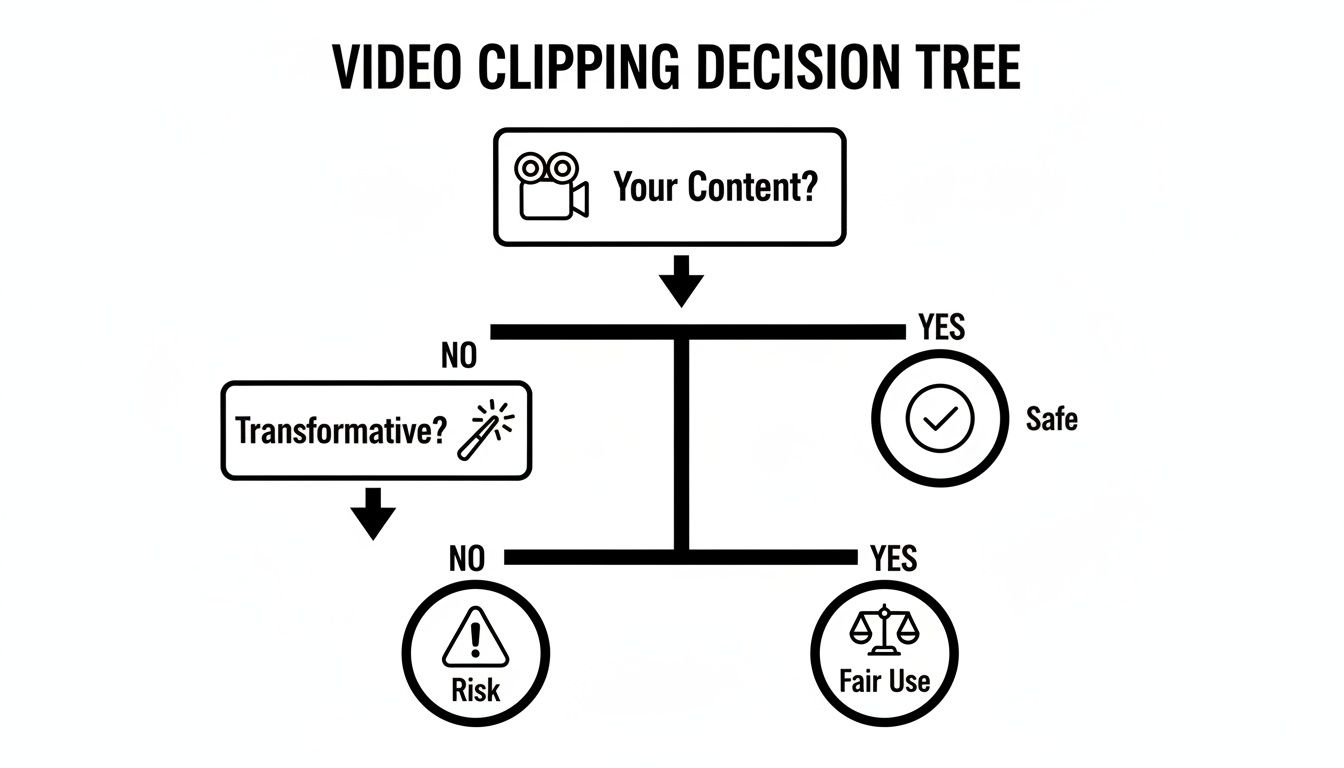
This decision tree breaks down the thought process for using someone else's footage.

As the flowchart shows, if you don't own the content, your legal standing really hinges on whether your work can be considered truly transformative under Fair Use.
What Is the Best Format for TikTok, Reels, and Shorts?
For short-form video, there's a clear winning formula. You need to go with a vertical 9:16 aspect ratio (1080x1920 pixels). This fills the entire phone screen and is essential for grabbing and holding a viewer's attention.
For length, aim for under 60 seconds to maximize your reach on all platforms.
Always export your final clip as a high-quality MP4. And don't forget to burn in captions—a massive number of people scroll with the sound off, and you don't want to lose them.
The goal is to make your content feel native to each platform. Vertical video with bold, clear captions is the universal language of short-form content and dramatically boosts viewer retention.
Can I Monetize Shorts Made From My Own Videos?
Yes, absolutely! This is one of the smartest strategies you can use as a creator.
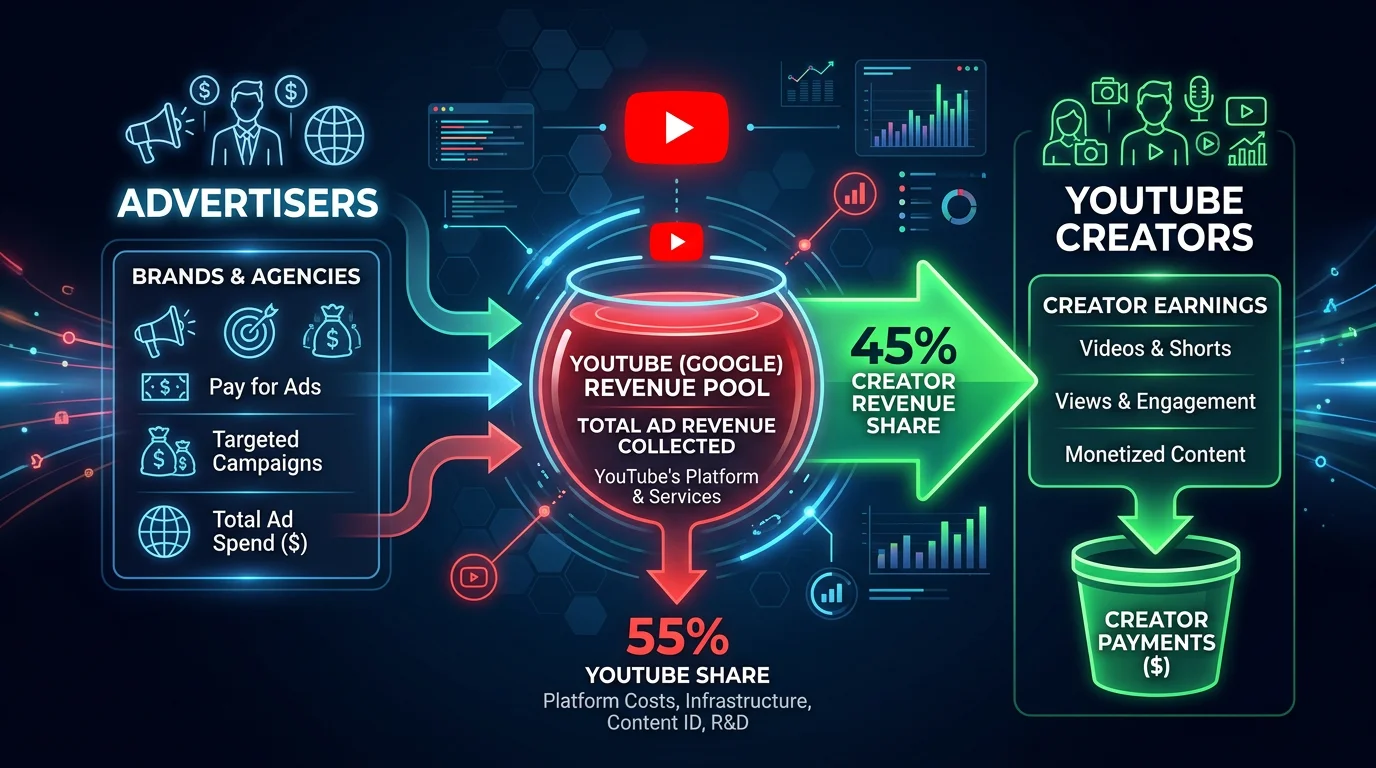
If you’re part of the YouTube Partner Program (YPP), any Shorts you create from your own long-form videos are eligible for the Shorts ad revenue sharing program. It’s a fantastic way to open up a new revenue stream while simultaneously driving viewers from your Shorts back to your full-length, monetized videos.
Ready to put your content creation on autopilot? With FlowShorts, you can turn one video into a month's worth of high-quality, ready-to-post Shorts, Reels, and TikToks—no editing required. Start growing your channel effortlessly today.