Kapwing Review 2026: The Best Free Online Video Editor? (Honest Take)
Honest Kapwing review for 2026. Covers browser-based editing, AI subtitles, Smart Cut, collaborative features, pricing (Free/Pro $16/Business $50), and how it compares to FlowShorts and CapCut.
FlowShorts Team
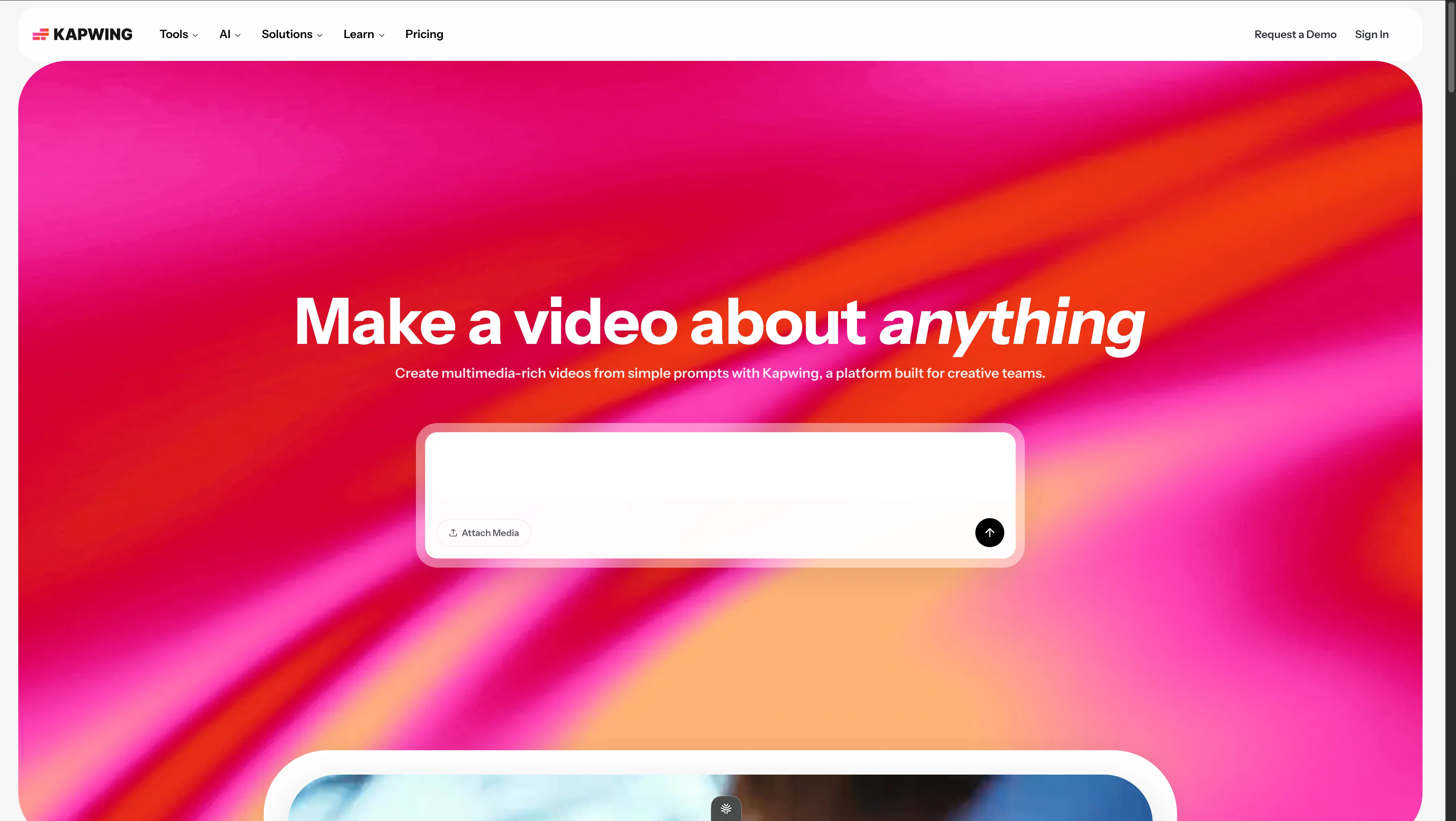
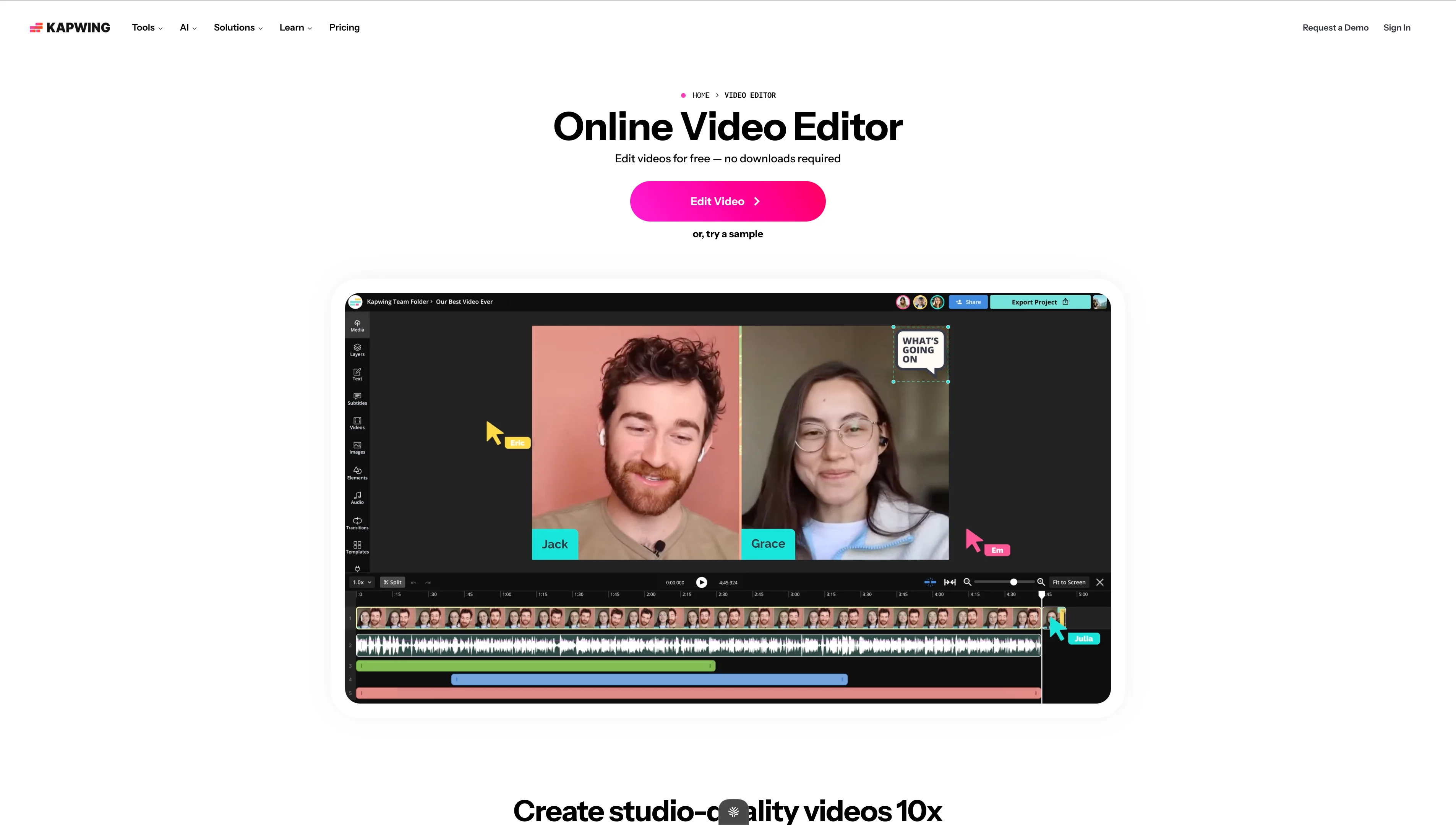
Kapwing is a browser-based video editor built for creative teams and individual creators. No downloads, no installations — open a browser tab, drag in your footage, and start editing. It's positioned as the "Google Docs of video editing" — collaborative, cloud-based, and accessible from any device.
This review covers what Kapwing does well, where it falls short, its 2026 pricing, who it's actually built for, and how it compares to alternatives for short-form video creators.
What Kapwing Does
Kapwing is a full-featured online video editor with AI-powered tools layered on top. It handles the entire editing workflow in the browser — trimming, splitting, layering, text, audio, transitions, effects — plus AI features like auto-subtitles, text-to-video drafts, and background removal.
Core Features
- Timeline-based editor — Multi-track timeline for video, audio, text, and overlay layers. Drag-and-drop interface, split/trim tools, transitions.
- AI auto-subtitles — Generate word-by-word captions with style customization. One of Kapwing's most popular features.
- AI text-to-video — Type a prompt and Kapwing generates a rough video draft with stock footage, which you then edit manually.
- Smart Cut — AI removes silences and filler words from talking-head videos automatically.
- Background removal — Remove or replace video backgrounds without a green screen.
- Resize/reformat — Convert between aspect ratios (16:9 to 9:16, 1:1, etc.) with auto-reframing.
- Brand Kit — Save logos, colors, fonts, and templates for consistent team output (Pro+).
- Collaborative workspace — Multiple team members can access and edit projects in real time.
- Dubbing — AI translates and dubs videos into other languages.
Kapwing Pricing (2026)
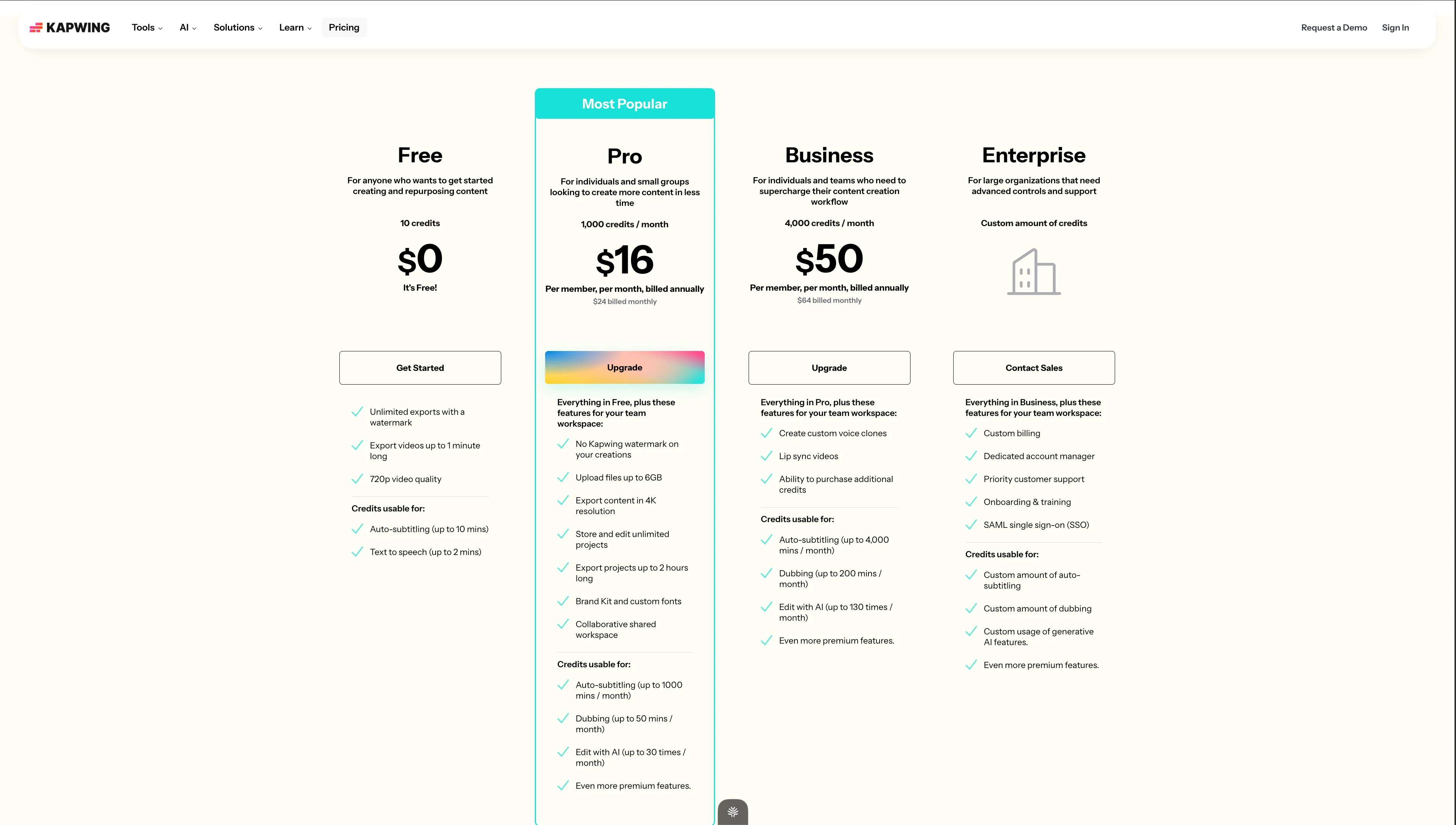
| Plan | Price | Credits | Key Features |
|---|---|---|---|
| Free | $0 | 10 credits | Unlimited exports with watermark, 720p, 1 min max video, auto-subtitles (10 min), TTS (2 min) |
| Pro | $16/mo (annual) / $24/mo (monthly) | 1,000/mo | No watermark, 4K export, 2 hr project length, brand kit, custom fonts, auto-subtitles (1,000 min), dubbing (50 min), AI edit (30x/mo) |
| Business | $50/mo (annual) / $64/mo (monthly) | 4,000/mo | Everything in Pro + voice cloning, lip sync, additional credits, auto-subtitles (4,000 min), dubbing (200 min), AI edit (130x/mo) |
| Enterprise | Custom | Custom | Everything in Business + SAML SSO, dedicated account manager, custom AI usage limits |
The Free Tier Is Usable (With Limits)
Kapwing's free tier is one of the more generous in the video editing space. You get unlimited exports — but with a watermark, 720p quality, and a 1-minute video length cap. For quick social clips, it works. For anything longer or professional, you need Pro.
What Kapwing Does Well
1. True Browser-Based Editing (No Install)
Kapwing runs entirely in the browser. No software download, no minimum system requirements (beyond a modern browser), no waiting for updates. Open a tab and start editing. This is genuinely useful for Chromebook users, people on shared computers, and teams who can't install software.
2. Auto-Subtitles Are Excellent
Kapwing's auto-subtitle feature is one of the best available. High accuracy (95%+ in English), multiple caption styles, word-by-word highlighting, and easy manual correction. For creators who need captions on every video (and you should — 85% watch without sound), this alone justifies Kapwing for many users.
3. Smart Cut Saves Hours on Talking-Head Content
The Smart Cut feature automatically detects and removes silences, pauses, and filler words from talking-head videos. Upload a 20-minute raw recording, and Smart Cut produces a tight 12-minute edit in seconds. For podcasters and talking-head creators, this is a massive time saver.
4. Collaborative Workflow Is Genuine
Multiple team members can work on the same project simultaneously — like Google Docs for video. Comments, version history, and shared brand assets make it practical for agencies and content teams. Most desktop editors (Premiere, Resolve) require workarounds for collaboration. Kapwing has it natively.
Looking for the Best Faceless Video Tool?
See why creators are switching to FlowShorts — AI video generation + auto-posting to 3 platforms from $19/mo.
Compare Plans →5. Resize/Reformat for Multi-Platform Is Quick
Shot a 16:9 video and need it in 9:16 for Reels and 1:1 for LinkedIn? Kapwing's resize tool auto-reframes with speaker tracking. One click to generate multiple aspect ratios from a single edit. Useful for creators posting across platforms.
Where Kapwing Falls Short
1. Performance Lags on Complex Edits
Being browser-based means Kapwing is limited by browser rendering performance. Complex timelines with multiple video layers, effects, and transitions can lag noticeably — especially on mid-range laptops. Desktop editors like DaVinci Resolve or Premiere Pro handle heavy edits far more smoothly.
2. AI Text-to-Video Is Rough
Kapwing's AI video generation from text prompts produces a rough draft — stock clips loosely matching your description, auto-generated captions, and basic transitions. It's a starting point, not a finished product. You'll spend 30-60 minutes editing the AI's output into something publishable. Compared to purpose-built text-to-video tools, it's underwhelming.
3. Credit System Creates Uncertainty
AI features (subtitles, dubbing, Smart Cut, AI edit) consume credits. The Free tier's 10 credits run out after one or two uses. Pro's 1,000 credits sound generous but heavy subtitle users (long videos, multiple languages) can burn through them mid-month. It's hard to predict monthly costs without tracking credit usage carefully.
4. Export Quality on Free Tier Is Limited
Free exports are capped at 720p with a watermark and 1-minute max length. That's unusable for most professional purposes. The free tier is essentially a demo — you need Pro ($16/mo) for production-quality output.
5. Not a Content Generation Tool
Kapwing is an editor, not a generator. It doesn't write scripts, generate original visuals, create voiceover, or produce content from scratch. You bring the footage; Kapwing helps you edit it. If you don't have footage, Kapwing can't help (beyond the basic AI text-to-video draft).
Who Kapwing Is Best For
| Great Fit | Not a Great Fit |
|---|---|
| Teams needing collaborative video editing | Solo creators wanting fully automated content |
| Creators who want browser-based editing (no install) | Anyone doing complex multi-layer editing (use desktop editor) |
| Social media managers reformatting for multiple platforms | Faceless channel creators needing original AI content |
| Talking-head creators who need Smart Cut + subtitles | Creators on a tight budget (free tier too limited) |
| Podcasters adding video to audio content | Anyone needing high-performance editing on heavy projects |
Kapwing vs. FlowShorts
| Feature | Kapwing | FlowShorts |
|---|---|---|
| What it is | Online video editor with AI features | Automated short-form video generator |
| Input | Your footage + manual editing | Topic/niche selection (or custom script) |
| Creates content from scratch? | No — edits existing footage | Yes — AI scripts, images, voiceover, captions, music |
| Editing required? | Yes — you edit manually (AI assists) | No — fully automated pipeline |
| Auto-posting | No | Yes (YouTube Shorts, TikTok, Instagram Reels) |
| Best for | Teams editing existing footage collaboratively | Solo creators wanting daily automated faceless content |
| Pricing | Free / $16/mo Pro / $50/mo Business | $19/mo (8 videos) / $39/mo (30) / $69/mo (60) |
When to choose Kapwing: You have footage and need a collaborative, browser-based editor with strong AI subtitles and Smart Cut.
When to choose FlowShorts: You want to produce short-form content daily without filming or editing — especially for faceless channels on YouTube Shorts, TikTok, and Instagram Reels.
Looking for the Best Faceless Video Tool?
See why creators are switching to FlowShorts — AI video generation + auto-posting to 3 platforms from $19/mo.
Compare Plans →Kapwing vs. Other Editors
| Tool | Type | Best For | Starting Price |
|---|---|---|---|
| Kapwing | Browser-based editor + AI | Teams, collaborative editing, subtitles | Free / $16/mo |
| CapCut | Desktop + mobile editor | Short-form editing, templates, TikTok | Free / $8/mo |
| DaVinci Resolve | Desktop professional editor | Color grading, complex edits, free pro-grade | Free |
| Veed.io | Browser-based editor | Subtitles, eye contact correction, simple edits | Free / $18/mo |
| Descript | Transcript-based editor | Podcasters, talking-head video | $24/mo |
| FlowShorts | AI video generator | Automated faceless short-form content | $19/mo |
For a full comparison, see our best AI video generators of 2026 and alternatives comparison page.
The Verdict
Kapwing is the best browser-based video editor for teams in 2026. The combination of collaborative editing, strong auto-subtitles, Smart Cut, and multi-platform reformatting makes it genuinely useful for content teams and social media managers. The AI features are helpful assistants, not replacements for editing skill.
It's not a content creation tool. If you need to produce original short-form content without filming — for faceless channels, daily Shorts, or automated Reels — Kapwing can't help. That's a different category: AI video generators like FlowShorts that build videos from topics rather than editing existing footage.
For the individual creator who films their own content and wants a solid, no-install editor with great subtitles: Kapwing Pro at $16/mo is a strong choice. For teams: Kapwing Business at $50/mo beats cobbling together individual licenses of desktop software.
Frequently Asked Questions
Is Kapwing free?
Kapwing has a free tier with unlimited exports — but with a watermark, 720p quality cap, and 1-minute video length limit. The free tier includes 10 AI credits (enough for 1-2 subtitle jobs). For production use, the Pro plan at $16/month (annual) removes all limitations.
Is Kapwing good for YouTube Shorts?
Yes. Kapwing's resize tool converts horizontal footage to 9:16 vertical with auto-reframing. Auto-subtitles and Smart Cut are particularly useful for Shorts. However, you need source footage — Kapwing doesn't generate Shorts from scratch.
Is Kapwing better than CapCut?
For different use cases. Kapwing is better for: team collaboration, browser-based editing, Smart Cut, and reformatting across platforms. CapCut is better for: short-form templates, mobile editing, TikTok integration, and free pro-quality editing without a watermark.
Can Kapwing make videos from text?
Kapwing has a basic AI text-to-video feature that generates a rough draft with stock footage from a text prompt. It's a starting point — you'll need to manually edit, swap clips, and refine the output significantly. For full text-to-video automation, tools like FlowShorts or InVideo AI produce more polished results without manual editing.
How does Kapwing compare to FlowShorts?
Different tools for different needs. Kapwing is an editor — you bring footage and edit it collaboratively. FlowShorts is a generator — you pick a topic and the AI creates complete videos (script, images, voiceover, captions) and auto-posts daily. Kapwing for editing, FlowShorts for automated content creation.
Related Guides
- FlowShorts vs Kapwing Comparison
- Opus Clip Review
- Best AI Video Generators of 2026
- 50 Video Editing Tips
- Text to Video AI Tools
- All Alternatives Compared
Skip Editing — Generate Videos Automatically
If you'd rather create short-form content without editing, FlowShorts generates complete videos — AI scripts, images, voiceover, captions, music — and auto-posts daily to YouTube Shorts, TikTok, and Instagram Reels.