How to Share a Video on TikTok and Grow Your Audience
Learn how to share a video on TikTok. Master posting, sharing to other apps, Duets, and optimization tips to reach a wider audience on the platform.
FlowShorts Team

When people talk about "sharing" on TikTok, they're usually referring to one of three things: posting your own new video, sharing someone else's content, or sending a video to a friend. Getting a handle on these different actions is key to using the app effectively, whether you're a creator or just there for the entertainment.
The Different Ways to Share on TikTok
First off, let's clear up what "sharing" really means in the TikTok universe. It's not just one button. It's an entire ecosystem built around getting content seen, and the platform’s wild success is proof of how well it works.
Consider the sheer volume: as of 2026, a mind-boggling 34 million videos are posted every single day. That number, highlighted in a thorough TikTok report by The Social Shepherd, shows just how seamless it is for creators to hit that ‘+’ button and share their work with the world.
Understanding your options from the get-go is the foundation of any good content strategy. Knowing when to post your own video versus when to just send a link to a friend makes a huge difference in how you interact with the platform.
This decision tree gives you a great visual for how to think about your sharing options.

As you can see, what you're trying to do—whether that's creating something new, boosting an existing video, or having a private conversation—will point you down a different path.
Key Takeaway: Think of "sharing" as having three main flavors: publishing new content to your profile, amplifying someone else's video with the share button, or sending a video directly to people or other apps. Each has its own time and place.
Of course, many creators don't just stop at TikTok. Spreading your content across different platforms is a smart way to grow your audience. If that's part of your plan, you might find our guide on how to link your Instagram to your TikTok account super helpful.
From Your Camera Roll to the For You Page
Every great TikTok starts with a choice: do you shoot inside the app, or do you upload something you've already polished? While shooting in-app is great for spontaneous moments, I’ll let you in on a little secret. Uploading edited footage almost always gives you a better-looking video.
When you edit in an external app first, you get total control over everything—the timing of your cuts, color grading, you name it. More importantly, it helps you sidestep some of TikTok’s heavy video compression, which can leave in-app footage looking a bit soft. This workflow also gives you a clean, watermark-free master copy you can use for Instagram Reels or YouTube Shorts, keeping your brand looking sharp everywhere.
Navigating the In-App Editor
Once you’ve uploaded your clip (or filmed in-app), you'll land in the editor. This is your playground for trimming, adding text, and dropping in effects. The name of the game here is speed. Be ruthless and trim every single dead second from the start and end of your clips. Pacing is everything on TikTok.
Next, you absolutely have to think about sound. Tap "Add sound" at the top of the screen to browse trending audio. The right sound can literally be the entire backbone of your video, so don't treat it as an afterthought.
Here’s a workflow I swear by: Instead of trying to shoehorn a sound into a video you already shot, find the trending sound first. Save it to your "Favorites," and then build your entire video concept around its beats and rhythm. It's a game-changer.
Finally, before you hit that post button, there's one crucial step many people miss. On the final post screen, tap "More options" and make sure "Allow high-quality uploads" is toggled on. It’s a simple switch that tells TikTok to go easy on the compression, preserving all that crisp detail. It's a tiny move that makes a massive difference in how professional your video looks.
Using the Share Button to Go Viral
That little paper airplane icon on the side of every video? It’s probably the most underrated growth tool on TikTok. Most people just use it to send a funny video to a friend, but they're missing out on a huge opportunity to signal value to the algorithm.
When someone shares your video, it tells TikTok your content is so good that it’s worth sending off-platform. That simple action is a massive driver of the platform's legendary engagement. It’s no accident that TikTok boasts an average engagement rate of 4.86%, with a staggering 45% of Gen Z users sharing videos with friends every single month. Some posts can rack up an average of 248 shares, which shows just how powerful external sharing is for getting more eyes on your content. You can dive deeper into these numbers with Printful's excellent analysis of TikTok engagement data.

Once you tap that share arrow, a whole menu of options pops up. Think of this as your personal content distribution toolkit, where each button serves a different strategic purpose.
Choosing Your Sharing Destination
Create Faceless Videos on Autopilot
FlowShorts generates and posts AI videos to YouTube, TikTok & Instagram while you sleep.
Try FlowShorts Free →At the top, you’ll see suggestions for apps and contacts you use a lot. Don't ignore these. Sending a video directly to a friend via SMS or WhatsApp is a super high-quality signal for the algorithm. It shows that your video didn't just get a passive 'like'—it actually started a one-on-one conversation.
Sharing to your Instagram Story is another fantastic move, especially if you're trying to get your followers there to check out your TikTok profile. Here’s a quick guide on how I decide where to share:
- Send to a Friend: This is perfect for niche content or an inside joke that you know one specific person will absolutely get. It creates a powerful, personal engagement signal that TikTok loves.
- Share to Instagram Story: Use this for videos with broader appeal. It acts like a mini-trailer for your TikTok account and is great for tempting people to come follow you.
- Copy Link: This is your most flexible option. I use this all the time to embed videos in blog posts, drop them into Discord channels, or include them in my email newsletters.
Pro Tip: Sharing isn't just about your own content. Make a habit of sharing other creators' videos that you genuinely like. This helps the algorithm get a better sense of your interests, which can actually help it show your videos to the right audience. It also shows you're an active part of the TikTok community, not just a broadcaster.
Join the Conversation with Duet and Stitch
Duet and Stitch are the features that really make TikTok feel like a conversation. Instead of just watching content, you can jump right in, react, and build on what other creators are doing. These tools are your golden ticket for participating in trends and engaging directly with the community.
So what's the difference? A Duet is a split-screen video where your clip plays right alongside the original. Think of it for reaction videos, singing a harmony, or showing your attempt at a viral dance challenge. It’s a side-by-side collaboration. A Stitch, on the other hand, lets you take a short clip (up to 5 seconds) from someone else’s video and use it as the intro to your own. This is perfect for adding commentary, answering a question, or using another video as the setup for a punchline.
Knowing how to collaborate on TikTok effectively using these tools can make a huge difference in your visibility. Choosing the right one is all about your goal.
- Go for a Duet when: You want a direct, real-time comparison. Think dance-offs, before-and-afters, or showing your live reaction to a shocking video.
- Use a Stitch when: You need to add context or continue a story. It’s the perfect format for saying, “Wait, check this out first…” before launching into your own take.

Controlling Who Can Use Your Videos
While Duet and Stitch are fantastic for engagement, you absolutely need to manage who can use your own content. Thankfully, TikTok gives you straightforward controls to protect your videos and your brand.
You can decide this for each video individually. Just before you hit post, look for "More options" on the Post screen. In there, you'll see simple toggles to turn "Allow Duet" and "Allow Stitch" on or off. Easy.
But what if you want a default rule for everything? You can do that, too.
Pro-Tip: For account-wide settings, head to Settings and privacy > Privacy. From there, you can navigate to Duet or Stitch individually. You get to choose between letting Everyone, only Friends (followers you follow back), or Only me use your videos for these features.
Setting this to "Friends" is a smart middle-ground. It encourages collaboration with a circle of creators you already know and trust, which helps prevent your content from being used in ways you never intended by complete strangers. It's all about putting you in the driver's seat.
Crafting Your Post for Maximum Engagement
You've done the hard work of creating a great video, but don't drop the ball now. The moment you hit 'post' is when the real game begins. Your caption and hashtags are the final one-two punch that can convince both the TikTok algorithm and a potential viewer to stop scrolling. This isn't just about filling a text box—it's your last, best chance to sell your video.
A good caption is all about starting a conversation. Forget simply describing what’s happening in the video. You need to provide context and, more importantly, prompt a reaction. Think of it as your hook. Ask a question, state a bold (or even slightly controversial) opinion, or create an "inside joke" for your followers.
For instance, if you're showing off a new coffee gadget, a caption like, "Just tried this new espresso gizmo. Honestly, I'm not sure if it's life-changing or just another dust collector. What do you think?" is far more engaging than "Testing a new coffee gadget." It invites people into the comments.
Building a Smart Hashtag Strategy
Hashtags are essentially the GPS for your content, guiding the right viewers directly to your video. A mistake I see all the time is people either using no hashtags or just throwing in massive, generic ones like #fyp and calling it a day. While a huge tag can feel like a lottery ticket, the real power is in a more layered approach.
Think of it as building a "hashtag ladder" that connects you with different audience segments. You need a mix:
Create Faceless Videos on Autopilot
FlowShorts generates and posts AI videos to YouTube, TikTok & Instagram while you sleep.
Try FlowShorts Free →- Broad Trends (2-3): Go ahead and use a couple of huge, relevant tags like
#viralor#tiktok. These give you a shot at massive, albeit less targeted, exposure. - Niche Topics (3-4): This is your sweet spot. Get specific to your video's actual content. For that coffee video, this would be tags like #homebarista, #espressotools, or #gadgetreview. This is how your ideal audience—the people who actually care about this stuff—will find you.
- Personal/Branded (1-2): Create a unique tag for your own content series or brand, something like #KevinsCoffeeCorner. This is crucial for building a community and helping loyal fans find all your related videos in one place.
Key Takeaway: The perfect caption grabs attention and starts a conversation. A smart hashtag strategy doesn't just chase trends; it builds a bridge to your ideal audience, ensuring your video gets seen by the people most likely to love it.
And before you hit that final post button, remember all the effort you put into the visual quality. If you want a refresher on making your content look polished from the very beginning, our guide on how to make TikTok videos is packed with production tips.
Automate Your Content and Scale Your Presence
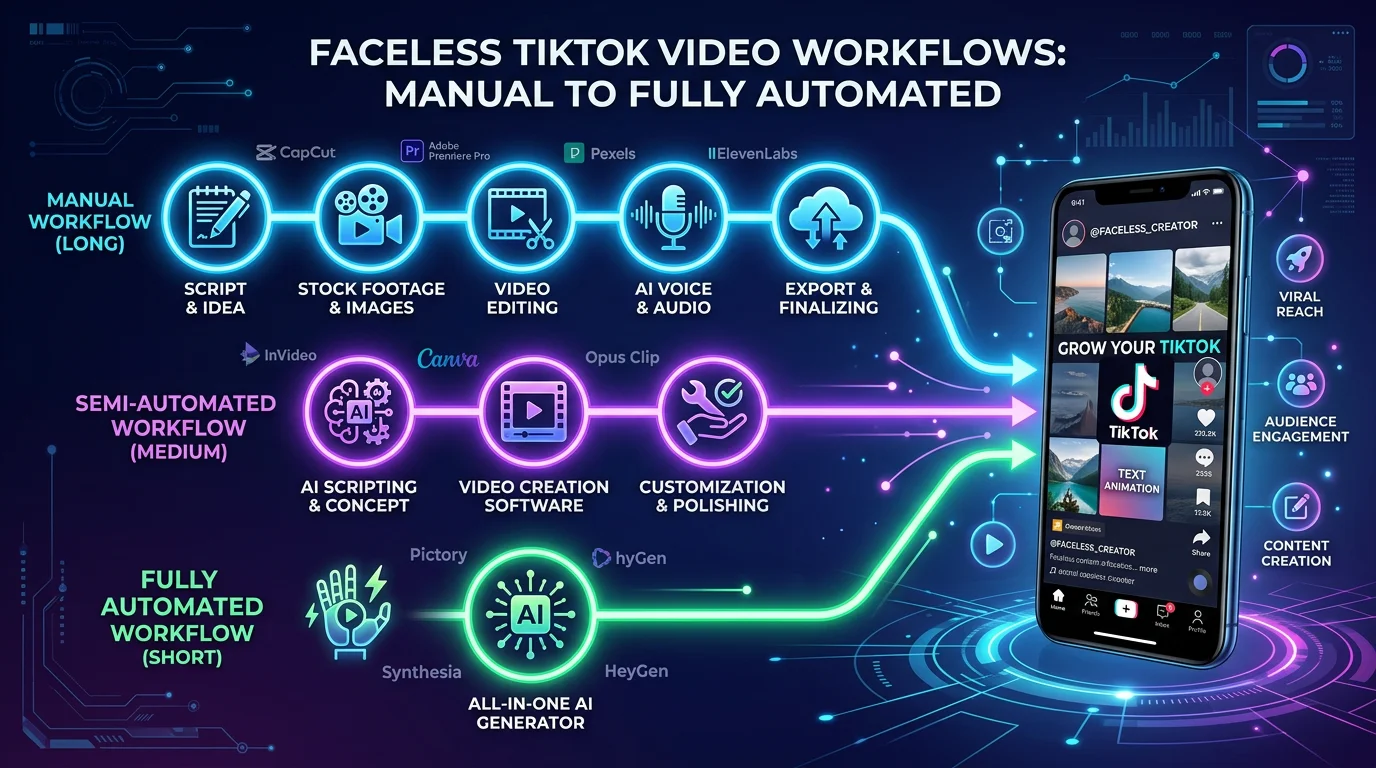
If you're serious about growing your TikTok, manually posting every single day is a huge time-suck. Let's be honest, it's a grind. A much better way to work is to automate your posting, which turns consistency from a daily chore into a hands-off process. This is how you shift from simply making videos to building a scalable content machine that works for you 24/7.
For instance, you can set up systems to automatically create and publish videos, even faceless ones, so your account is always active.

When your content schedule runs itself, you get to put your time and energy where it really matters—on big-picture strategy and actually talking with your community.
By automating daily posts, you achieve a level of consistency that's nearly impossible to maintain manually. This relentless presence is what fuels exponential audience growth over time.
Picture this: you pick a niche you love, like finance or history, and an AI-driven system generates and posts high-quality videos to your account every day. To make this happen, exploring different TikTok automation software solutions can be a total game-changer. These tools take over the repetitive work, freeing you from the daily slog of editing and uploading.
And if you want to get really strategic about when your automated posts go live, our guide on how to schedule TikTok videos breaks down everything you need for maximum impact.
Common Questions About Sharing on TikTok
Once you get the hang of sharing, you'll inevitably run into a few tricky situations. It happens to everyone! Let's clear up some of the most common questions and sticking points people face when sharing TikTok videos.
Why Are Duet or Stitch Options Missing?
Ever find a video that’s perfect for a Duet or Stitch, only to discover the option isn't there? It’s not a bug. This simply means the original creator chose to disable those features for that video or for their entire account.
You have the exact same control over your own content. Just head to your "Privacy Settings" before you post to decide if you want to allow others to Duet or Stitch with your videos.
Can I Share a TikTok Without the Watermark?
TikTok’s watermark is there for a good reason: it ensures the original creator always gets credit for their work. Because of this, any video you save or share directly from the app will automatically include it.
While you might see third-party apps out there claiming to remove the watermark, using them often goes against TikTok's terms of service.
The best way to get a clean, un-watermarked version of your video is to save it to your camera roll before you hit the post button. This saves the raw, edited clip without any of the TikTok interface elements.
What Is the Difference Between Reposting and Sharing?
This one's a common point of confusion. Think of Reposting as a public endorsement. When you repost, the video gets added to a dedicated "Reposted" tab on your profile, and TikTok might show it to your own followers on their For You Pages.
Sharing, on the other hand, is more direct and private. Using the share arrow lets you send the video straight to a friend through DMs or post it to another platform, like your Instagram Stories.
Can I See Who Shared My TikTok?
Unfortunately, no. TikTok doesn't provide a list of every individual user who has shared your video. It’s one of the platform’s privacy measures.
You can, however, see the total number of shares in your video’s analytics, which gives you a great idea of how well it's resonating. The only time you'll get a specific notification is if someone shares your video with you in a direct message.
Ready to scale your content without the daily grind? Let FlowShorts automate your video creation and posting schedule. Start building your hands-free content empire today at https://flowshorts.app.
Free tools: TikTok Hashtag Generator · TikTok Username Generator
Free tools: Best Time to Post Calculator